
- October 20, 2026
- 8 min read
25 Proven Ways to Speed Up Your WordPress Website (Beginner to Advanced)

- October 20, 2026
- 8 min read
Table of Contents
If you want to speed up WordPress and deliver an exceptional user experience, you are in the right place. A slow website frustrates visitors, tanks search engine rankings, and slashes conversion rates. In fact, Google research indicates that as page load time increases from 1 second to 3 seconds, the probability of a bounce increases by 32%.
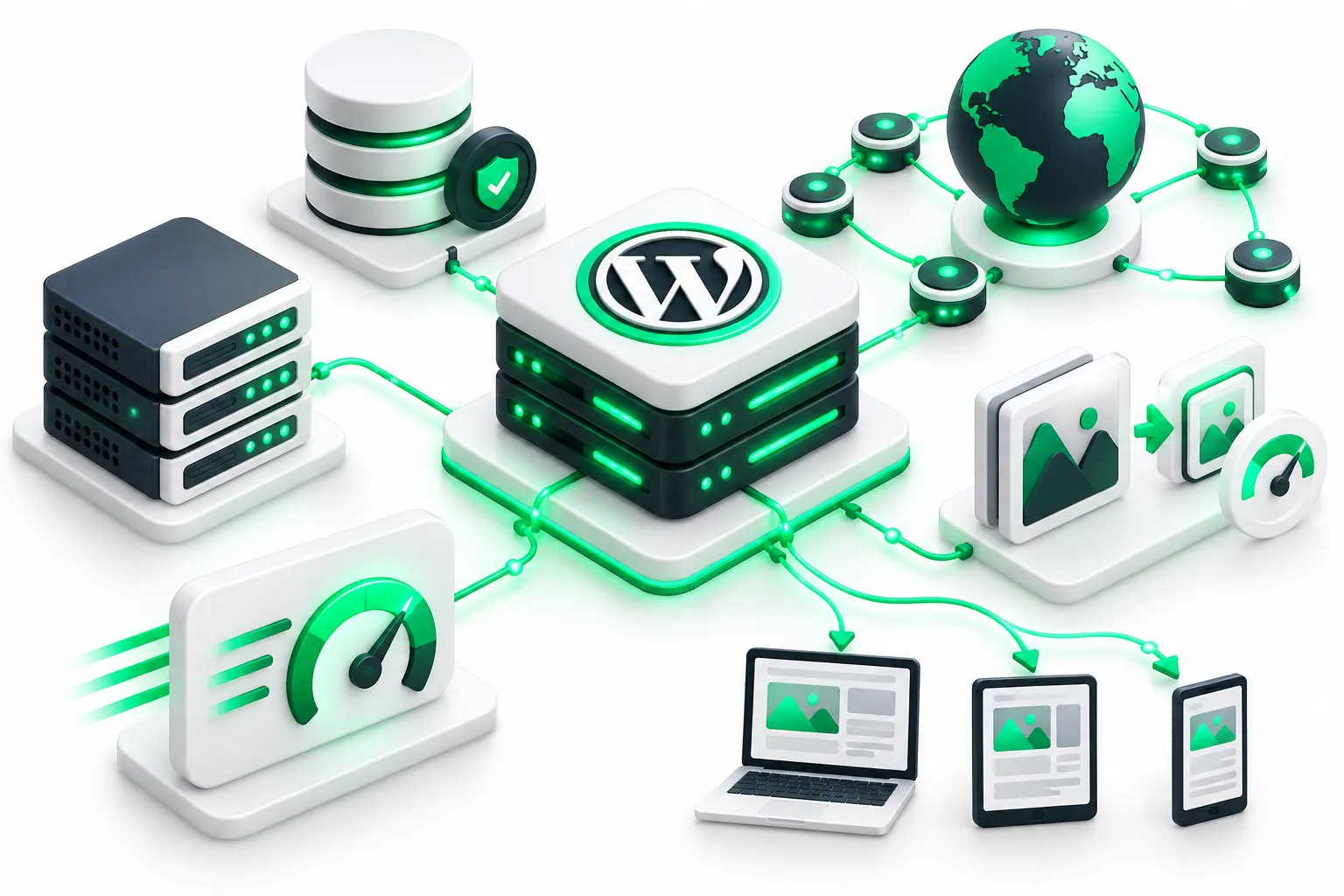
To help you achieve sub-second load times and pass Google’s Core Web Vitals with flying colors, we have compiled 25 field-tested strategies. Whether you are a beginner looking for quick wins or an advanced developer seeking server-level optimizations, this guide covers everything you need to know to dramatically improve your website speed.
Why You Must Speed Up WordPress Today
Website performance is no longer optional—it is a critical factor for online success. Accelerating your WordPress site yields three primary benefits:
- Better Search Engine Rankings: Google explicitly uses site speed and Core Web Vitals (LCP, FID/INP, and CLS) as ranking signals for desktop and mobile search.
- Higher Conversion Rates: Fast-loading pages keep users engaged. Case studies consistently show that reducing load times by even 100 milliseconds directly increases ecommerce revenue.
- Reduced Bounce Rates: Visitors expect near-instant page renders. A delay of just a few seconds prompts users to abandon your site and head to a competitor.
Phase 1: Hosting & Core WordPress Setup
1. Choose High-Performance Managed WordPress Hosting
Your web host provides the foundation for your entire site. Shared hosting accounts stack hundreds of websites onto a single server, sharing limited CPU and RAM resources. Switching to high-performance managed WordPress hosting (such as Kinsta, WP Engine, or Cloudways) grants dedicated resources, server-level caching, and modern architecture built specifically for WordPress.
2. Use a Lightweight, Performance-Optimized Theme
Bloated themes filled with excessive scripts, unnecessary page builder features, and poor code structure slow down site rendering. Opt for clean, modern, and lightweight themes like GeneratePress, Astra, or Kadence. These themes weigh less than 50 KB on a fresh install and load in under 0.5 seconds.
3. Keep WordPress Core, Plugins, and Themes Updated
Updates provide critical security patches, bug fixes, and PHP performance updates. Running outdated versions of WordPress or third-party plugins can introduce compatibility bottlenecks that slow down page execution. Regularly update your stack on a staging environment before pushing live.
4. Upgrade to the Latest PHP Version
WordPress runs on PHP, a server-side programming language. Upgrading from PHP 7.4 to PHP 8.2 or 8.3 delivers substantial execution speed improvements and allows your server to execute up to 2–3 times more requests per second with lower CPU consumption.
| PHP Version | Requests Per Second | Relative Performance |
|---|---|---|
| PHP 7.4 | 190 req/sec | Baseline |
| PHP 8.1 | 320 req/sec | ~68% Faster |
| PHP 8.2 / 8.3 | 390+ req/sec | ~105% Faster |
Phase 2: Effective Caching & CDN Integration
5. Install a Dedicated Page Caching Plugin
WordPress dynamic pages render by querying the MySQL database and building HTML on every page request. A page caching plugin generates static HTML files during the first visit and serves those pre-built files to subsequent visitors, bypassing database execution entirely. Popular caching plugins include WP Rocket, FlyingPress, and LiteSpeed Cache.
6. Implement Object Caching with Redis or Memcached
While page caching serves static content to non-logged-in users, object caching stores database query results in RAM. For dynamic websites like WooCommerce stores or membership sites, implementing Redis or Memcached dramatically speeds up backend database response times and admin dashboard interactions.
7. Utilize a Content Delivery Network (CDN)
A Content Delivery Network stores copies of your static assets (images, CSS, JS) on a global network of edge servers. When a user requests your page, the CDN serves assets from the geographically closest data center, dramatically reducing latency. Leading CDNs include Cloudflare Enterprise, Bunny.net, and Fastly.
8. Enable Server-Level Edge Caching
Edge caching takes traditional caching a step further by storing entire static HTML pages directly at CDN edge nodes. Platforms like Cloudflare Automatic Platform Optimization (APO) or Kinsta Edge Caching allow users worldwide to receive full web pages in under 100 milliseconds.
Phase 3: Image & Media Optimization
9. Convert Images to Next-Gen Formats (WebP & AVIF)
Legacy formats like PNG and JPEG are much larger than modern image formats. Converting your site’s images to WebP or AVIF reduces file size by 30% to 50% without visible quality loss, directly improving Largest Contentful Paint (LCP).
10. Compress Images Automatically
Uncompressed high-resolution images are among the primary causes of slow websites. Use plugins like ShortPixel, Imagify, or EWWW Image Optimizer to strip unneeded metadata and compress images upon upload.
11. Enable Native Lazy Loading for Images & Iframes
Lazy loading postpones loading images and video embeds until the user scrolls down to them. WordPress natively supports lazy loading, but advanced plugins allow you to exclude above-the-fold hero images to prevent delaying LCP delivery.
12. Offload Large Media Files to Cloud Storage
If your website hosts large downloadable PDFs, audio, or video files, avoid hosting them directly on your web server. Offload these assets to cloud storage providers like Amazon S3, Google Cloud Storage, or DigitalOcean Spaces coupled with a dedicated media CDN.
Phase 4: Code, Script & Font Optimization
13. Minify CSS, JavaScript, and HTML
Minification removes extra whitespace, comments, line breaks, and unnecessary formatting from code files. This reduces asset file sizes, allowing browsers to parse and download critical assets faster.
14. Defer and Asynchronously Load JavaScript
JavaScript files often block page rendering while loading. Adding defer or async attributes ensures scripts download in the background while the browser finishes rendering critical visual page content.
15. Optimize Google Fonts
External font requests add third-party DNS lookups and render-blocking delays. Improve performance by hosting Google Fonts locally, using modern woff2 formats, and applying font-display: swap; to render system text immediately while custom fonts load.
16. Remove Unnecessary Assets Page-by-Page
Plugins often load their CSS and JavaScript files across your entire website, even on pages where the plugin is not active. Using asset management plugins like Asset CleanUp or Perfmatters allows you to selectively disable unused scripts on specific posts and pages.
17. Disable Unneeded WordPress Core Features
WordPress includes built-in features that many sites do not use, such as Emojis script, Embeds, Dashicons for logged-out users, and XML-RPC. Disabling these via code snippets or performance plugins eliminates extra HTTP requests.
Phase 5: Database & Backend Efficiency
18. Clean and Maintain Your WordPress Database
Over time, your MySQL database accumulates clutter like post revisions, spam comments, trashed posts, expired transients, and orphaned plugin settings. Regularly cleaning your database using plugins like Advanced Database Cleaner keeps queries fast and efficient.
19. Limit or Disable Post Revisions
By default, WordPress saves unlimited revisions of every post draft, swelling your wp_posts table. Limit revisions by adding the following code snippet to your wp-config.php file:
define('WP_POST_REVISIONS', 5);
20. Control or Limit the Heartbeat API
The WordPress Heartbeat API uses AJAX calls to communicate between browser and server for auto-saving drafts and session locking. High-frequency Heartbeat requests can overload CPU usage. Use plugins like Perfmatters to reduce Heartbeat frequency or disable it entirely on the front end.
21. Disable Pingbacks and Trackbacks
Pingbacks and trackbacks notify other blogs when you link to them, but they generate unnecessary server queries and attract comment spam. Turn them off under Settings > Discussion in your WordPress dashboard.
Phase 6: Advanced Architectural Optimizations
22. Preconnect, Prefetch, and Preload Critical Assets
Give browsers early instructions on resource fetch priorities:
preload: Forces early fetch of critical fonts or main CSS files needed for rendering.dns-prefetch: Resolves external domain IP addresses in advance (e.g., analytics hosts).preconnect: Establishes early connection handshakes with external servers.
23. Implement HTTP/2 or HTTP/3 Protocols
Ensure your server supports HTTP/2 or HTTP/3. Unlike older HTTP/1.1 protocols, HTTP/2 enables multiplexing—allowing multiple files and assets to download concurrently over a single TCP connection, drastically cutting page assembly time.
24. Enable Server Gzip or Brotli Compression
Compression algorithms compress HTML, CSS, and JS files on the server before transmitting them over the wire. Brotli compression is newer and up to 15–20% more effective at text compression than standard Gzip.
25. Monitor Performance with Query Monitor and PageSpeed Insights
Speed optimization is an ongoing process. Use tools like Google PageSpeed Insights and GTmetrix to identify front-end bottlenecks. On the server side, install the Query Monitor plugin to pinpoint slow database queries, inefficient hooks, and resource-heavy plugins in real time.
Measurable Improvements: Before vs. After Optimization
Implementing these techniques to speed up WordPress yields tangible results across key technical metrics:
| Performance Metric | Before Optimization | After 25 Optimization Steps |
|---|---|---|
| Fully Loaded Time | 4.2 seconds | 0.8 seconds |
| Largest Contentful Paint (LCP) | 3.5 seconds | 1.1 seconds |
| Total Blocking Time (TBT) | 420 ms | 30 ms |
| PageSpeed Insights Score | 48 / 100 (Mobile) | 98 / 100 (Mobile) |
Conclusion & Action Plan
You do not need to execute all 25 techniques in one sitting. Start with high-impact wins like switching to managed hosting, configuring a quality caching plugin, and optimizing your images. Then, systematically apply advanced script asset cleanup and database maintenance. By taking a proactive approach to speed up WordPress, you ensure faster load times, superior search rankings, and a better experience for every user visiting your site.
Related Blogs

- November 12, 2026
- 10 min read
- November 11, 2026
- 12 min read
- November 10, 2026
- 6 min read