
Table of Contents
Ensuring robust WordPress security is no longer optional for modern website owners; it is a critical operational requirement. Because WordPress powers over 40% of all websites globally, it naturally attracts cybercriminals, automated botnets, and malicious hackers. Unprotected websites face relentless brute-force probes, unauthorized access attempts, and malicious script injections every single day. In this comprehensive WordPress security guide, you will discover how to proactively harden your website, utilize modern AI-powered threat detection, and implement proven security workflows to safeguard your digital presence like an enterprise expert.
Understanding Common WordPress Security Threats
To defend your website effectively, you must first understand the primary vectors that attackers exploit. Most WordPress compromises are automated rather than targeted, meaning botnets continually scan the internet searching for known vulnerabilities and weak login credentials.
1. Brute Force Login Attacks
Brute force attacks involve automated scripts trying thousands of username and password combinations in seconds. Attackers target default paths like /wp-login.php and /wp-admin/. Additionally, these attacks consume significant server memory and bandwidth, causing severe performance degradation even if the attacker fails to log in.
2. SQL Injections (SQLi) and Cross-Site Scripting (XSS)
SQL Injection occurs when malicious inputs bypass sanitation and manipulate your WordPress database query syntax. Consequently, attackers can read confidential user data, tamper with database records, or insert administrative users. Similarly, Cross-Site Scripting (XSS) injects malicious JavaScript into vulnerable fields, executing arbitrary code inside your visitors’ browsers and compromising session cookies.
3. Outdated Plugins, Themes, and Core Software
According to security research, outdated third-party software accounts for the vast majority of successful WordPress intrusions. When developers discover security flaws, they issue security patches immediately. However, if website administrators fail to apply updates promptly, their websites remain exposed to publicly documented exploits.
4. Malware, Backdoors, and Ransomware
Once attackers gain entry, they typically plant backdoors—hidden scripts designed to maintain persistent administrative access even after you change your login credentials. Furthermore, malware can inject spam links, redirect your visitors to malicious external websites, or lock your site content for ransom.
Essential WordPress Security Hardening Steps
Implementing foundational hardening steps severely reduces your attack surface. Follow these practical measures to lock down your installation against automated intrusion techniques.
Enforce Strong Passwords and Two-Factor Authentication (2FA)
Weak passwords remain one of the most common security gaps. All administrator and editor accounts must enforce complex passwords generated by a password manager. Furthermore, adding Two-Factor Authentication (2FA) creates an essential layer of security by requiring a time-sensitive code generated on a mobile device alongside your password.
Limit Login Attempts and Protect the Admin Portal
By default, WordPress allows unlimited failed login attempts. Limiting login attempts locks out IP addresses after a set number of invalid credentials. Additionally, customizing your login URL away from /wp-login.php significantly reduces automated bot noise and conserves server resources.
Implement Strict File Permissions
Incorrect directory and file permissions allow attackers to modify system files and inject malicious code. Ensure your server adheres to standard WordPress permission models:
| File / Directory | Recommended Permission | Security Function |
|---|---|---|
| Folders & Directories | 755 or 750 | Prevents unauthorized file execution while allowing server processes to read folders. |
| Standard Files | 644 or 640 | Allows site owners to edit files while blocking write access for unauthorized web users. |
wp-config.php | 600 or 440 | Locks down critical database credentials and security keys from unauthorized user access. |
Disable File Editing and XML-RPC
The built-in WordPress theme and plugin editor allows administrators to edit code directly from the dashboard. However, if an attacker gains admin rights, this feature gives them full arbitrary code execution. You can disable this risk easily by adding the following directive to your wp-config.php file:
define( 'DISALLOW_FILE_EDIT', true );
Additionally, disable XML-RPC if you do not use mobile apps or Jetpack services. XML-RPC allows legacy remote publishing, but attackers frequently exploit it for massive, amplified brute-force attacks.
The Role of AI-Powered Threat Detection in Modern Security
Traditional WordPress security relies on known static signature databases to detect malicious files. While signature matching is effective against known malware, it frequently misses zero-day threats or newly obfuscated code. Modern enterprise security tools now integrate artificial intelligence and machine learning to analyze behavioral patterns in real time.
- Behavioral Anomaly Detection: AI monitoring algorithms baseline your server’s standard traffic patterns and immediately isolate unusual database queries, unexpected administrative actions, or spike anomalies in remote file uploads.
- Real-Time Heuristic File Inspection: Instead of relying strictly on checksum matches, AI models analyze the structural intent of PHP scripts to catch dynamic, self-modifying backdoors before execution.
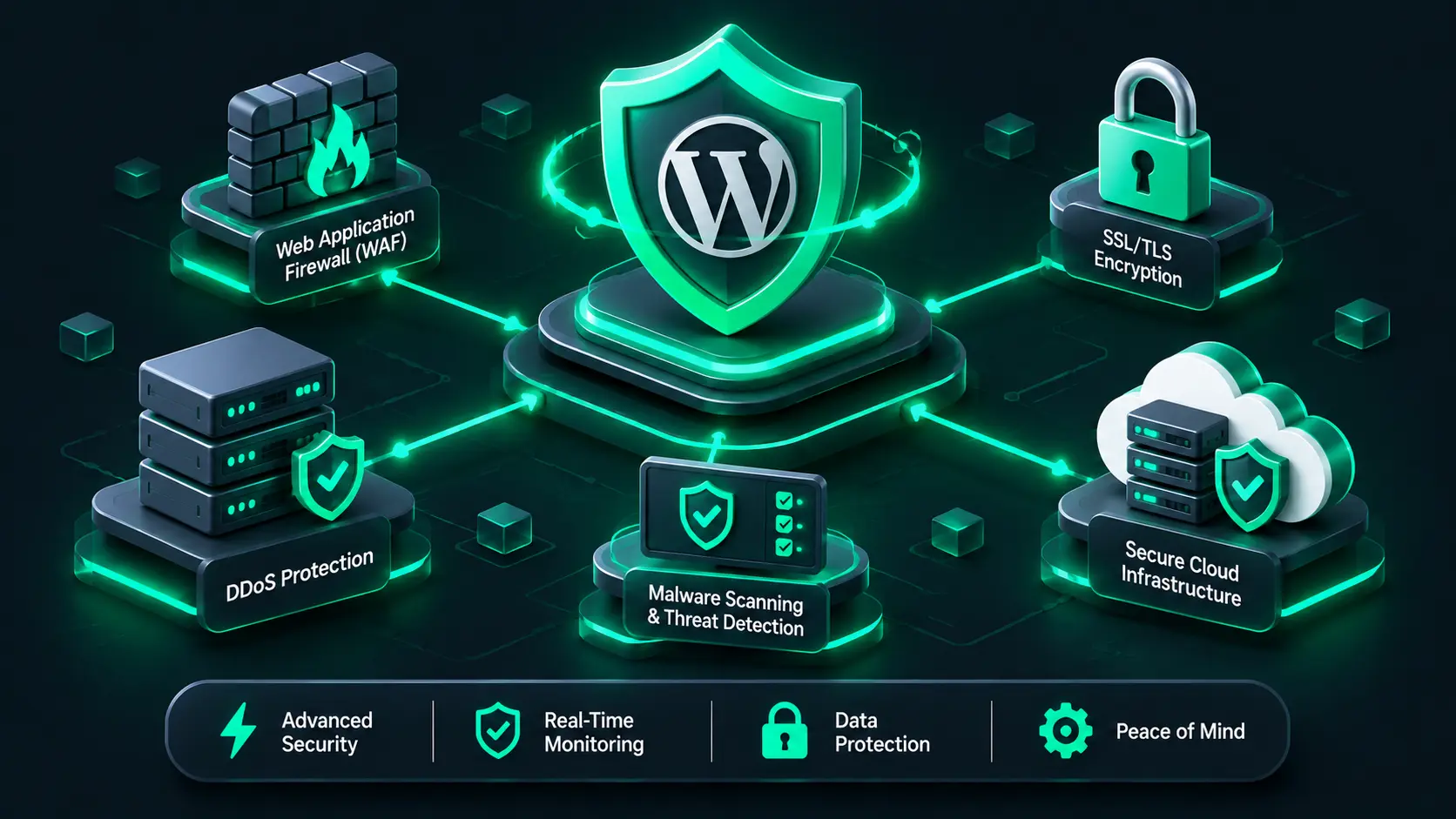
- Automated Predictive Blocking: Modern web application firewalls (WAF) share real-time threat intelligence globally, automatically blocking malicious IP addresses across millions of sites before an attack hits your web server.
Top WordPress Security Plugins Compared
Selecting the right security plugin simplifies ongoing protection, site auditing, and malware cleanup. Below is an overview of top industry solutions:
| Plugin | Key Features | Best For | Firewall Type |
|---|---|---|---|
| Wordfence Security | Endpoint firewall, live traffic scanner, robust malware removal, dynamic threat defense. | Comprehensive on-server detection and deep system visibility. | Endpoint WAF (PHP-level) |
| Sucuri Security | Cloud WAF, DDoS protection, CDN integration, automated site monitoring, integrity checks. | Cloud-level mitigation and offloading server processing load. | Cloud DNS / Edge WAF |
| Solid Security (iThemes) | System hardening, two-factor authentication, user activity logging, vulnerability patching. | User access control, dashboard security audits, site hardening. | Application Hardening |
| MalCare | Instant automated malware scanner, off-site analysis, one-click automated malware removal. | Lightweight scanning without degrading web server performance. | Cloud-based Analysis |
Complete WordPress Security Checklist
Use this quick reference checklist to evaluate your website’s overall security posture and ensure no critical vulnerabilities remain exposed:
- Use Managed WordPress Hosting: Partner with reputable hosting providers offering server-level firewalls, isolated environments, and automatic server patching.
- Keep WordPress Core Updated: Enable automatic updates for minor releases and test major core upgrades promptly.
- Maintain Plugin Hygiene: Delete inactive or abandoned plugins and keep remaining extensions updated daily.
- Activate Web Application Firewall (WAF): Deploy a cloud or endpoint firewall to inspect incoming network packets.
- Enforce Two-Factor Authentication (2FA): Require 2FA across all administrator, editor, and shop manager accounts.
- Change Default Database Prefix: Replace the standard
wp_database prefix during installation to resist basic SQL injection scripts. - Configure Offsite Automated Backups: Schedule daily encrypted backups to secure cloud storage locations like Amazon S3 or Google Cloud.
- Implement Secure HTTPS/SSL: Force encrypted SSL transport across all pages with an active certificate.
- Monitor User Activity Logs: Keep comprehensive logs of plugin installations, user logons, and file modifications.
- Conduct Regular Security Audits: Run deep integrity checks and database cleanup routines quarterly.
Frequently Asked Questions (FAQs)
Why is WordPress security important for small websites?
Small websites are prime targets for automated botnets because they often lack active monitoring and basic hardening. Attackers compromise low-traffic sites to send spam, host malicious landing pages, or participate in distributed denial-of-service (DDoS) networks.
Do security plugins slow down WordPress websites?
Some endpoint security plugins that perform deep file scanning directly on your server can consume CPU and RAM. However, using cloud-based firewalls (like Sucuri or Cloudflare) offloads traffic analysis away from your origin server, preserving fast page speed while maintaining high protection levels.
What should I do if my WordPress site gets hacked?
First, remain calm and isolate the environment by placing your site in maintenance mode. Change all administrative passwords and database connection keys. Restore your site from a known clean offsite backup or run a full malware cleanup using a plugin like MalCare or Wordfence. If needed, hire certified security specialists to eliminate persistent backdoors.
Is manual code hardening better than installing a plugin?
Both strategies complement each other. Manual code tweaks (such as setting correct file permissions and modifying wp-config.php directives) remove system overhead, while dedicated security plugins provide active real-time monitoring, brute force rate-limiting, and updated malware definition rules.
Final Thoughts: Long-Term Maintenance and Best Practices
Maintaining high-level WordPress security is a continuous operational process rather than a single set-and-forget project. Cyber threats constantly evolve, but by combining essential core hardening, automated offsite backups, strict access controls, and AI-backed threat detection, you protect your digital assets effectively. Ensure you review user permission roles regularly, inspect audit logs, and maintain strict update routines. For additional command-line system controls, review our guide on using WP-CLI for WordPress administration to streamline your site management workflows like a professional.
Related Blogs


- November 11, 2026
- 12 min read
- November 10, 2026
- 6 min read
- November 9, 2026
- 8 min read