
Table of Contents
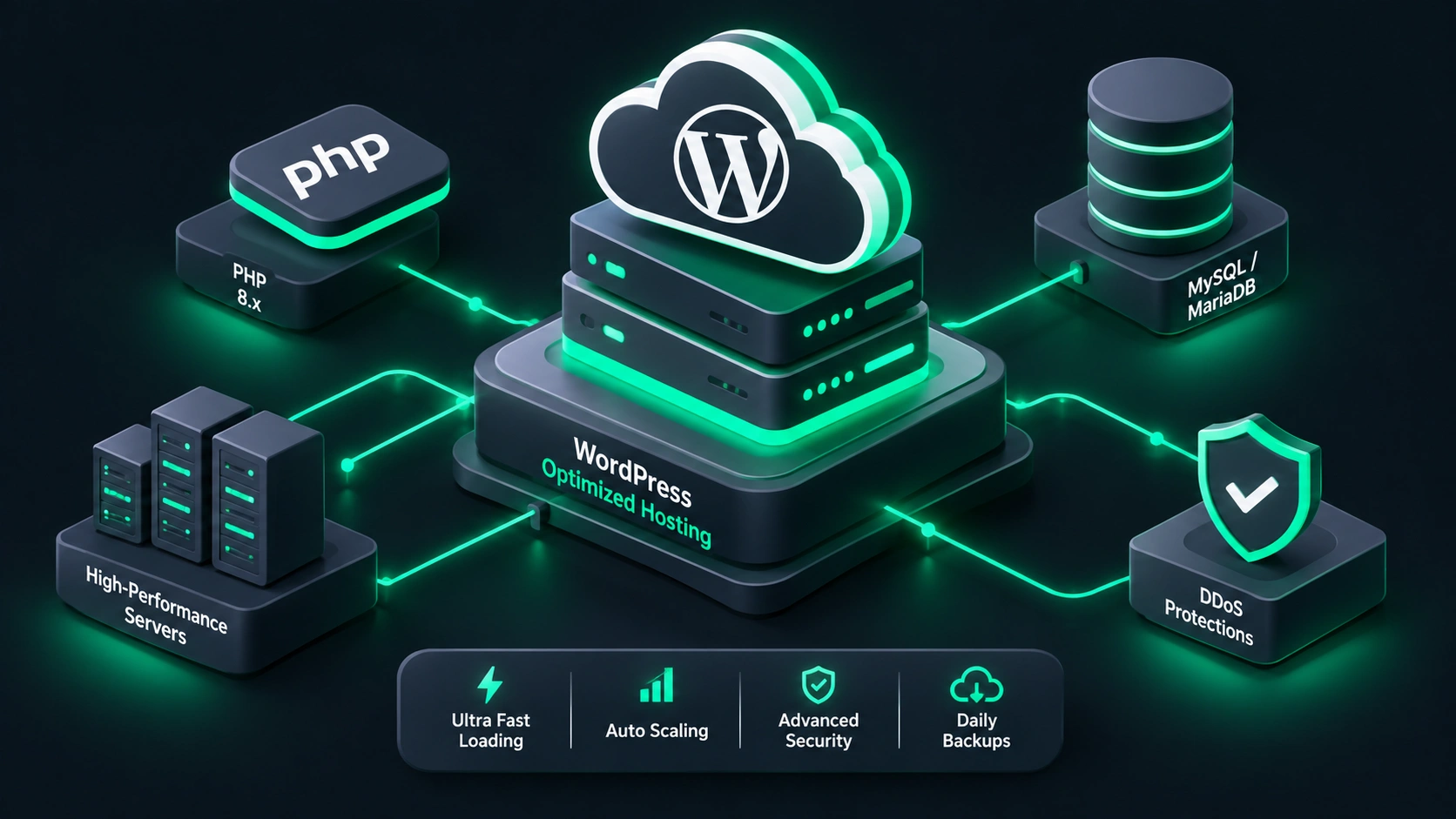
When running a high-traffic e-commerce store or content-heavy publication, generic web hosting configurations often fail to deliver modern speed standards. Implementing targeted WordPress server optimization is the single most effective approach to eliminate backend bottlenecks, reduce Time to First Byte (TTFB), and maintain fast page load times during heavy traffic surges. In this step-by-step setup guide, we will walk you through optimizing every critical layer of your Linux server stack—from PHP execution and MariaDB memory allocation to Redis object caching and server security.
Why Default Linux Server Settings Require Optimization
Most Linux distributions (such as Ubuntu, Debian, or AlmaLinux) ship with conservative default settings designed to run on minimal hardware virtual machines. For example, default MariaDB installations allocate minimal memory to database buffers, while default PHP-FPM configurations limit worker processes to prevent memory exhaustion on small instances.
Consequently, when WordPress processes heavy dynamic requests or complex database queries, unoptimized servers quickly run out of available worker threads. Therefore, optimizing your server specifically for WordPress workloads requires reallocating hardware resources—such as system RAM and CPU cores—directly to the subsystems that process dynamic requests. Additionally, configuring server-side caching prevents redundant PHP execution, drastically reducing server load.
1. PHP and PHP-FPM Configuration for WordPress Server Optimization
WordPress is written in PHP, meaning every un-cached request requires PHP scripts to execute on your server. Comprehensive WordPress server optimization begins with fine-tuning basic PHP limits and optimizing FastCGI Process Manager (PHP-FPM) worker pools.
Optimizing Essential php.ini Directives
Open your primary php.ini file (typically found at /etc/php/8.2/fpm/php.ini or /etc/php/8.3/fpm/php.ini) and adjust the following parameters:
| Directive | Recommended Value | Purpose |
|---|---|---|
memory_limit | 256M to 512M | Prevents memory exhaustion during complex plugin tasks and bulk uploads. |
max_execution_time | 60 to 300 | Sets maximum execution duration in seconds before terminating a script. |
max_input_vars | 3000 to 5000 | Allows handling large menu structures, WooCommerce variations, and custom fields. |
post_max_size | 64M | Sets the maximum size of POST data accepted by PHP. |
upload_max_filesize | 64M | Defines maximum uploaded file size in the WordPress media library. |
Configuring PHP-FPM Process Manager (pm)
PHP-FPM handles incoming requests passed from your web server. By default, PHP-FPM uses dynamic process management, which creates and destroys worker processes dynamically. However, on dedicated high-performance servers, configuring process management to static or tuned dynamic modes ensures lower execution latency because processes remain resident in RAM.
Use the following formula to estimate your optimal pm.max_children setting:
pm.max_children = (Total RAM allocated to PHP-FPM) / (Average Memory per PHP Process)
For example, on an 8 GB RAM server reserving 4 GB (4096 MB) for PHP-FPM where each PHP process consumes approximately 60 MB, your calculation is 4096 / 60 = 68 max children.
Update your pool configuration (e.g., /etc/php/8.2/fpm/pool.d/www.conf) with calibrated settings:
pm = dynamic
pm.max_children = 68
pm.start_servers = 16
pm.min_spare_servers = 8
pm.max_spare_servers = 24
pm.max_requests = 1000
2. MariaDB and MySQL Settings for High Database Throughput
Database query execution is frequently the bottleneck behind slow WordPress admin pages and delayed WooCommerce checkouts. Because WordPress relies on MySQL/MariaDB for database storage, tuning buffer memory and connection limits yields massive performance improvements.
Key MariaDB Optimization Variables
- innodb_buffer_pool_size: The most crucial database directive. It allocates system RAM for caching table data and indexes. Set this to 50%–70% of total server RAM on a dedicated database host.
- innodb_log_file_size: Set to approximately 25% of your buffer pool size to optimize write performance without excessive disk flushing.
- max_connections: Calibrate according to traffic needs (e.g., 150–300) to avoid “Too many connections” database errors.
- thread_cache_size: Retains database threads in cache for reuse, reducing CPU overhead. Settings between 16 and 64 work best for most workloads.
Recommended Database Settings by RAM Capacity
| System RAM | innodb_buffer_pool_size | innodb_log_file_size | max_connections |
|---|---|---|---|
| 4 GB | 2 GB | 512 MB | 150 |
| 8 GB | 5 GB | 1 GB | 250 |
| 16 GB | 10 GB | 2 GB | 400 |
Additionally, enable the MySQL Slow Query Log in your server configuration (my.cnf or 50-server.cnf) to detect unoptimized queries taking longer than 2 seconds:
slow_query_log = 1
slow_query_log_file = /var/log/mysql/slow-query.log
long_query_time = 2
3. Maximizing Speed with OPcache in WordPress Server Optimization
OPcache improves execution speed by storing precompiled PHP script bytecode in server RAM, eliminating the need for PHP to read and compile scripts on every page view. Effective WordPress server optimization requires setting adequate OPcache memory allocation and file limits.
Add or refine the following parameters in your 10-opcache.ini file:
opcache.enable=1
opcache.memory_consumption=256
opcache.interned_strings_buffer=32
opcache.max_accelerated_files=20000
opcache.revalidate_freq=2
opcache.validate_timestamps=1
opcache.fast_shutdown=1
For production environments where code changes occur only through deployment pipelines, you can set opcache.validate_timestamps=0 for further speed gains. Meanwhile, remember to flush OPcache manually when updating core files, plugins, or themes.
4. Implementing Persistent Redis Object Caching
While page caching serves static HTML responses to anonymous visitors, object caching accelerates dynamic pages by caching database query results directly in RAM. Redis is an open-source, in-memory data structure store that handles high-frequency query caching effortlessly.
For instance, instead of querying the database repeatedly for site configuration options on every request, WordPress retrieves the result instantly from Redis in microseconds. To learn how to automate server management tasks via CLI, check out our WP-CLI Beginner’s Guide.
Configuring Redis Server
Install Redis on your server and modify /etc/redis/redis.conf to configure memory thresholds and eviction policies:
maxmemory 512mb
maxmemory-policy allkeys-lru
The allkeys-lru (Least Recently Used) policy ensures that when memory fills up, Redis automatically purges outdated keys instead of throwing memory errors.
Next, install a plugin such as Redis Object Cache and add your connection variables to wp-config.php:
define('WP_REDIS_HOST', '127.0.0.1');
define('WP_REDIS_PORT', 6379);
define('WP_REDIS_TIMEOUT', 1);
define('WP_REDIS_READ_TIMEOUT', 1);
5. Web Server Tuning & Server-Level Page Caching
Choosing and configuring your web server—such as NGINX or LiteSpeed—is fundamental to managing concurrent visitor traffic efficiently.
NGINX FastCGI Caching
NGINX is renowned for minimal memory footprint and high request concurrency. Implementing NGINX FastCGI cache enables the web server to bypass PHP entirely for non-logged-in users, serving pre-rendered HTML files from RAM or SSD storage in under 50 milliseconds.
Furthermore, ensure your web server configuration incorporates modern compression and protocol standards:
- Brotli and Gzip Compression: Compresses HTML, CSS, and JS files prior to delivery to minimize network bandwidth.
- HTTP/2 or HTTP/3 (QUIC): Allows multiplexed connections over a single TCP/UDP channel, eliminating head-of-line blocking.
6. Essential Security Recommendations for WordPress Servers
Server performance must be paired with strong security safeguards. A core aspect of complete WordPress server optimization involves hardening server access points and guarding resources against malicious traffic.
Key Security Configuration Checklist
- Disable Password SSH Authentication: Force SSH key-based authentication and change the default SSH port (22) to a non-standard port.
- Configure Firewall Rules (UFW): Restrict open server ports to essential services only (HTTP 80, HTTPS 443, and custom SSH).
- Install Fail2ban: Monitor authentication logs to automatically ban IP addresses demonstrating repeated failed login attempts or brute-force behavior.
- Disable XML-RPC & Dashboard File Editing: Add
define('DISALLOW_FILE_EDIT', true);inwp-config.phpto prevent plugin or theme modification from the WordPress admin dashboard, and blockxmlrpc.phprequests at the web server level. - Set Proper File Permissions: Apply
755for directories and644for files across your WordPress installation. For additional server security strategies, see [Internal Link: WordPress Security Best Practices].
7. Real-Time Server Monitoring and Maintenance
Maintaining peak server response speeds requires continuous monitoring of CPU utilization, RAM consumption, and database health. Monitoring tools allow administrators to identify bottleneck risks before they lead to unexpected downtime.
Recommended Server Monitoring Tools
| Tool | Category | Primary Use Case |
|---|---|---|
htop / glances | CLI Process Monitor | Tracking real-time CPU, RAM, and process activity. |
mytop / mycli | Database Analyzer | Monitoring active MySQL queries and server connections. |
| New Relic / Datadog | APM Platform | Identifying slow PHP functions, hooks, and plugin delays. |
| System Cron Replacement | Linux Cron (crontab) | Offloading wp-cron.php execution from web traffic to server-level crons. |
To offload WordPress cron processing to the server, disable default cron behavior in wp-config.php using define('DISABLE_WP_CRON', true); and add a scheduled task in system crontab executing every 5 minutes:
*/5 * * * * wget -q -O - https://yourdomain.com/wp-cron.php?doing_wp_cron >/dev/null 2>&1
Conclusion: Achieving Peak WordPress Server Optimization
Achieving maximum speed and stability requires a methodical approach across your server infrastructure. By combining calibrated PHP-FPM process pools, tuned MariaDB buffers, aggressive OPcache configuration, and persistent Redis object caching, your server will effortlessly handle heavy traffic spikes with low response times.
Regularly analyze server logs, optimize slow queries, and keep server packages updated to maintain a secure, ultra-fast WordPress hosting environment.
Related Blogs


- November 12, 2026
- 10 min read
- November 11, 2026
- 12 min read
- November 10, 2026
- 6 min read