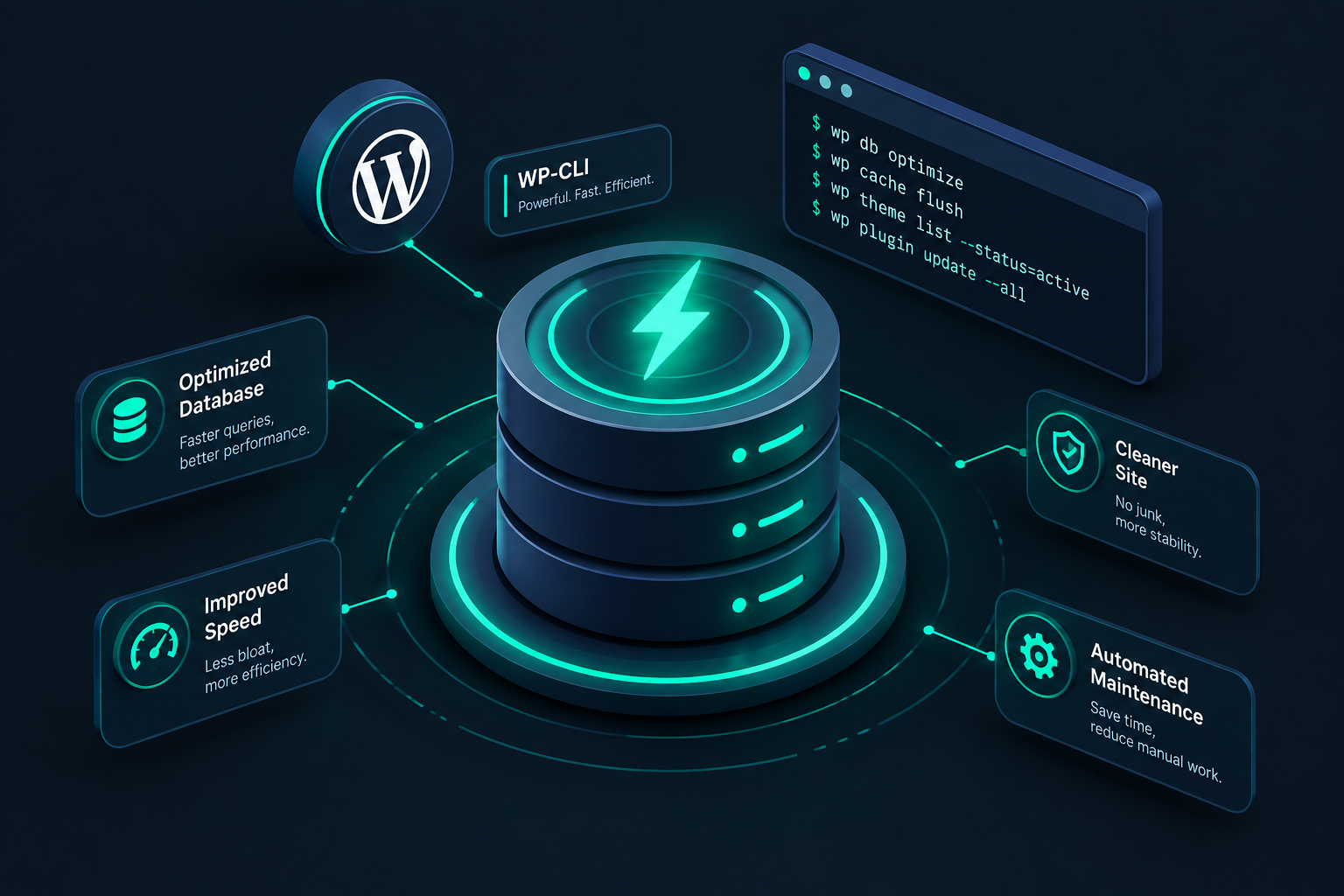

If you want to speed up your development workflow, mastering WP-CLI commands is the ultimate game-changer. Logging into the WordPress admin dashboard, navigating through multiple menus, and clicking through options is fine for casual bloggers, but as a professional developer, your time is valuable. By executing tasks directly from your command-line interface, you can accomplish in seconds what used to take minutes, paving the way for seamless WordPress automation.
In this guide, we have compiled a comprehensive list of 30 essential WP-CLI commands that every WordPress developer should have in their toolkit. From automated installations to database optimization, plugin management, and server administration, these commands will transform your terminal into a powerful administration panel.
WP-CLI is the official command-line interface for WordPress. It allows you to manage almost every aspect of a WordPress site without opening a web browser. With WP-CLI, you can update plugins, configure multisite installations, perform database migrations, and bulk-generate content via command-line arguments. Additionally, because WP-CLI bypasses the web browser, it avoids timeout limits on heavy operations, making it incredibly fast and reliable.
To use these commands, you must have SSH access to your web server and have the WP-CLI tool installed. For detailed installation steps, check out our comprehensive WP-CLI Beginner’s Guide.
Setting up a fresh WordPress environment can be tedious. Use these core commands to install, update, and manage the base WordPress application instantly.
This command downloads the latest version of WordPress directly into your current directory. It automatically pulls files from the official WordPress repository.
wp core downloadYou can also download a specific version or language by appending flags:
wp core download --version=6.4.2 --locale=en_GBGenerate your wp-config.php file securely without manually copying and pasting database credentials.
wp core config --dbname=my_db_name --dbuser=db_user --dbpass=secure_password --dbhost=localhostRun the famous WordPress five-minute installation in less than five seconds.
wp core install --url=https://yourdomain.com --title=\"My WP-CLI Site\" --admin_user=admin_username --admin_password=strong_password_here --admin_email=info@yourdomain.comKeep your WordPress core up to date without visiting the dashboard. It checks for updates and installs them automatically.
wp core updateAfter a core update, the WordPress database schema may need updating. Execute this command to perform the database upgrade instantly.
wp core update-dbQuickly verify the exact version of WordPress currently running on your server.
wp core versionManaging databases is a critical aspect of development. These commands allow you to back up, restore, search, and optimize your database effortlessly.
Generate a SQL backup file of your WordPress database in a split second. This is an essential step before running risky operations or during migrations.
wp db export my_backup_file.sqlImport a SQL backup file straight into your database with no maximum upload limit constraints.
wp db import my_backup_file.sqlThis is arguably one of the most powerful WP-CLI commands. It allows you to safely search and replace strings (like changing domains) throughout your database without breaking PHP serialized data.
wp db search-replace 'https://staging.example.com' 'https://example.com' --dry-runTip: Always use the --dry-run flag first to preview your changes before altering the database.
Execute custom SQL queries directly from your terminal. This saves you from having to log in to phpMyAdmin or connect via an external client.
wp db query \"SELECT count(*) FROM wp_posts;\"Optimize your database tables to clean up overhead and improve site performance.
wp db optimizeNeed to start from scratch? This command drops all tables in the database. Be extremely careful when using this!
wp db reset --yesWith these automated WP-CLI commands, you no longer need to manually log in to search, upload, and activate plugins or themes.
View a formatted table of all installed plugins, along with their status (active/inactive), version, and whether updates are available.
wp plugin listInstall any plugin from the WordPress.org directory. You can also install multiple plugins simultaneously.
wp plugin install contact-form-7 woocommerce --activateTo install a plugin from a local zip file or a remote URL, pass the path directly:
wp plugin install https://downloads.wordpress.org/plugin/akismet.zip --activateActivate an installed plugin instantly. This is extremely useful if a plugin conflict locks you out of your WP-Admin.
wp plugin activate wp-super-cacheDeactivate one or more plugins without touching the dashboard. Perfect for troubleshooting security issues.
wp plugin deactivate --allUpdate all your plugins, or target a specific one, to keep your site secure.
wp plugin update --allDisplay all installed themes, noting which one is currently active.
wp theme listDownload and install a theme. You can active it immediately with the --activate flag.
wp theme install twentytwentyfour --activateUpdate your themes via CLI in seconds.
wp theme update --allIf you lose your WordPress password or need to generate test accounts, these commands are incredibly helpful.
Create a new user account instantly. You can assign any role, including Administrator.
wp user create developer_jane jane@example.com --role=administrator --user_pass=jane_secure_passwordGet a clean overview of all registered users on your website, organized by role.
wp user listUpdate user details, such as changing a password or editing meta fields.
wp user update developer_jane --user_pass=new_ultra_secure_passDelete a user. You can reassign their authored posts to another user ID using the --reassign flag.
wp user delete developer_jane --reassign=1Scale your development by automating content generation, importing bulk media assets, and rebuilding assets.
Quickly draft or publish articles without leaving your code editor.
wp post create --post_type=page --post_title=\"Privacy Policy\" --post_status=publishNeed dummy data for testing theme layouts or performance benchmarking? Generate hundreds of placeholder posts instantly.
wp post generate --count=50Import local files into the WordPress Media Library and attach them to posts automatically.
wp media import /path/to/local/image.jpg --post_id=45If you change your theme’s image sizes, use this command to regenerate all thumbnails without having to install bulky plugins.
wp media regenerate --yesFine-tune your server’s performance, clear out junk files, and refresh system caches using these advanced commands.
Transients are used to temporarily store cached data in your database. Clearing expired or broken transients can resolve unexpected UI glitches.
wp transient delete --expiredTo delete all transients completely:
wp transient delete --allFlush your object cache completely. This is incredibly helpful when working with Redis or Memcached servers where updates aren’t showing up instantly.
wp cache flushBelow is a direct comparison highlighting why developers rely on WP-CLI commands over the graphical user interface for everyday tasks.
| Action | WP-Admin GUI Process | WP-CLI CLI Process | Time Saved |
|---|---|---|---|
| Install & Activate Plugin | Navigate to Plugins -> Add New -> Search -> Install -> Activate | wp plugin install name --activate | ~80% faster |
| Database Backup (Export) | Install backup plugin -> Configure settings -> Click Export -> Download file | wp db export | ~95% faster |
| Update Core, Plugins, Themes | Navigate to Updates -> Check boxes -> Click Update on multiple screens | wp core update && wp plugin update --all && wp theme update --all | ~90% faster |
| Reset User Password | Go to Users -> Profile -> Generate Password -> Copy/Paste -> Save Profile | wp user update username --user_pass="pass" | ~75% faster |
To implement WordPress automation safely and professionally, you should always follow developer best practices:
wp db export.deploy.sh) to provision new staging sites instantly.Mastering WP-CLI is one of the most rewarding milestones for a WordPress developer. By integrating these 30 useful commands into your workflow, you unlock unparalleled speed, efficiency, and the unlimited potential of WordPress automation. Stop clicking, start typing, and take total control over your development environment today!
“The CLI is not about doing things differently; it is about doing things faster, consistently, and without limitations.” – WP Educated Development Team
For more technical tips and tutorials on speed optimization and server management, explore our deep dive into [Internal Link: WordPress Hosting Optimization Guide].