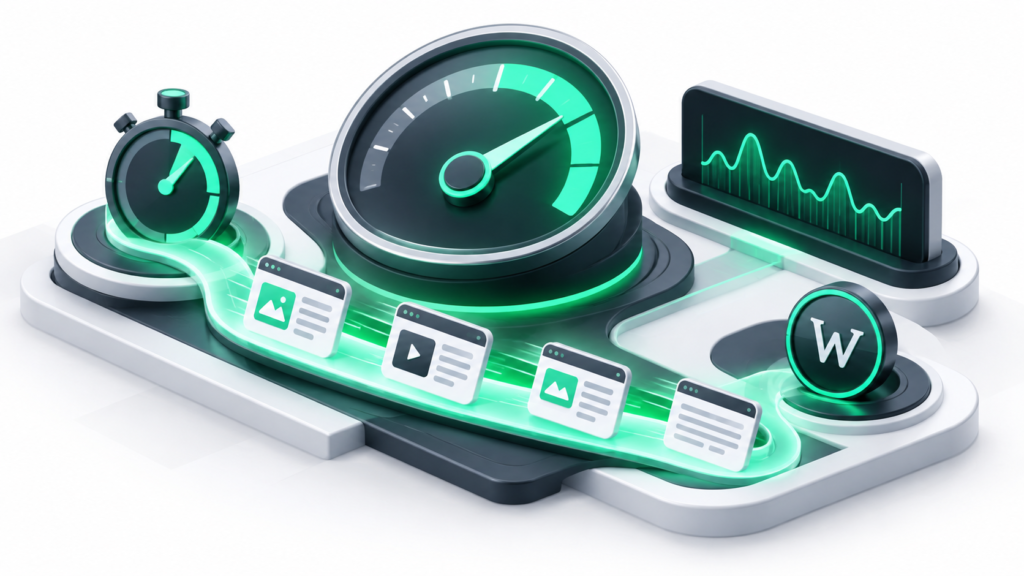

When you set out to improve WordPress website speed, it is easy to fall down the rabbit hole of chasing a 100/100 score on automated testing tools like Google PageSpeed Insights or GTmetrix. However, perfection is rarely necessary—or even realistic—for a dynamic content management system running plugins, tracking scripts, and dynamic database queries. Instead, your primary goal should be enhancing real-world user experience (UX), lowering bounce rates, and boosting conversions.
Every website has a unique performance bottleneck. For a high-traffic WooCommerce store, the culprit might be unoptimized database tables or slow server response times. For a content-heavy blog, it could be oversized hero images or render-blocking third-party scripts. Therefore, a targeted approach is essential. Blindly applying every optimization trick in the book can actually break layout functionality, corrupt scripts, and ruin your user experience.
Before you touch a single setting, always establish a benchmark, create a full backup, and test your changes on a staging site if you are running a production environment.
You cannot improve what you do not measure. Before implementing any speed optimization techniques, run your site through multiple testing utilities to record your baseline metrics:
Make sure to test your site multiple times to account for server fluctuations. As you apply optimizations one by one, re-test your site. If a specific tweak causes a metric to drop or breaks a site feature, you will instantly know which change caused the regression.
Speed optimization involves modifying .htaccess files, editing core functions, cleaning databases, and altering caching rules. A single misplaced character can trigger the dreaded WordPress White Screen of Death (WSOD).
Always follow this safe workflow:
Images are almost always the heaviest assets on a webpage. Unoptimized JPEGs and PNGs downloaded straight from a camera or stock site can cripple your page load times.
For more deep-dive tutorials on WordPress maintenance, check out our guide on [Internal Link: WP-CLI Beginners Guide] to manage media bulk operations efficiently.
WordPress is a dynamic platform—every time a visitor lands on a page, PHP scripts query your MySQL database, assemble the HTML, and serve it to the browser. Caching bypasses this heavy lifting by generating static HTML files and serving them instantly.
| Cache Type | What It Does | Best For |
|---|---|---|
| Page Caching | Stores fully rendered HTML pages for static delivery. | All WordPress sites, especially blogs and news portals. |
| Object Caching | Stores database query results in memory (Redis/Memcached). | WooCommerce stores, membership sites, and high-traffic blogs. |
| Browser Caching | Tells visitor browsers to store static assets locally. | Reducing repeat visit load times globally. |
Popular caching solutions include LiteSpeed Cache (if your server uses LiteSpeed), WP Rocket, and W3 Total Cache. Always test your site layout immediately after enabling page caching to ensure dynamic elements like shopping carts or user menus do not break.
The flexibility of WordPress is its greatest strength, but a bloated plugin stack is the fastest way to slow down a site. Not all plugins are created equal; poorly coded plugins load unnecessary JavaScript and CSS files across every single page of your site, even where they are not needed.
“Simplicity is the ultimate sophistication.” — Leonardo da Vinci. This rings especially true for WordPress performance architecture.
Over time, your WordPress database accumulates digital clutter that slows down query processing times. This includes post revisions, trashed items, spam comments, transient options, and orphaned post meta.
You can optimize your database using plugins like WP-Optimize or Advanced Database Cleaner. Key maintenance steps include:
Even if you optimize everything else, your foundation dictates your ceiling. Your choice of theme, font loading strategy, and hosting provider will make or break your speed efforts.
Avoid multipurpose themes packed with built-in page builders, sliders, and animation libraries unless you actually use them. Lightweight, modular block-based themes (like GeneratePress, Kadence, or the native WordPress Twenty Twenty-Four theme) load lightning fast.
Loading Google Fonts from external servers adds extra DNS lookups and render-blocking requests. Download your typography files locally and serve them directly from your own domain to improve privacy and speed.
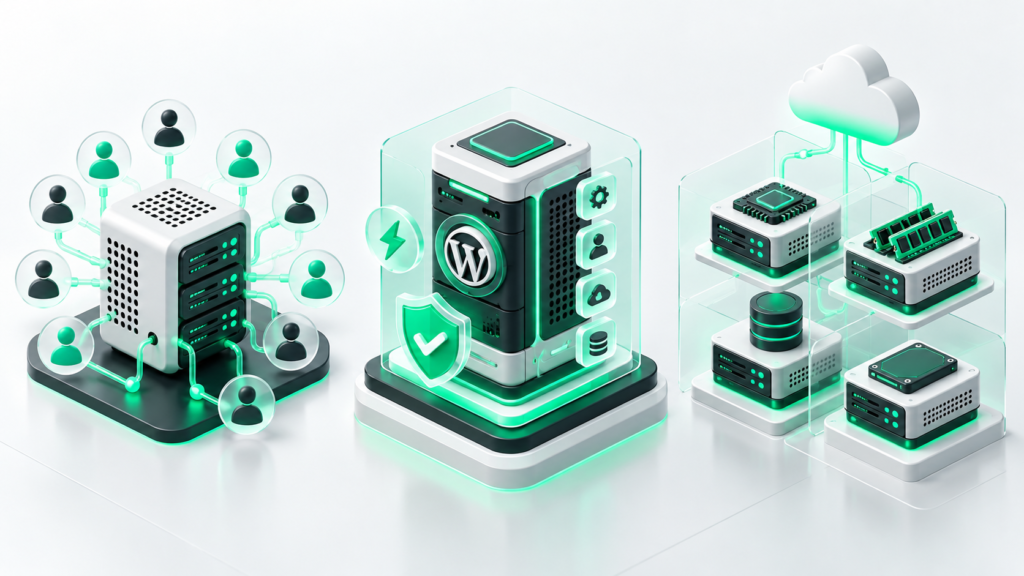
Shared hosting plans with overcrowded servers will bottleneck your site no matter how many optimization plugins you install. Upgrade to a reputable cloud VPS or managed WordPress hosting provider that utilizes NVMe SSD storage, PHP 8.2+, and server-level caching.
Learning how to improve WordPress website speed is an ongoing process of refinement rather than a one-time chore. By measuring your metrics, backing up your data, optimizing your images, implementing smart caching, and auditing your plugins, you can dramatically accelerate your user experience without breaking your site functionality.
Remember that your ultimate target is a fast, responsive website for human visitors—not just a vanity score on a testing dashboard.