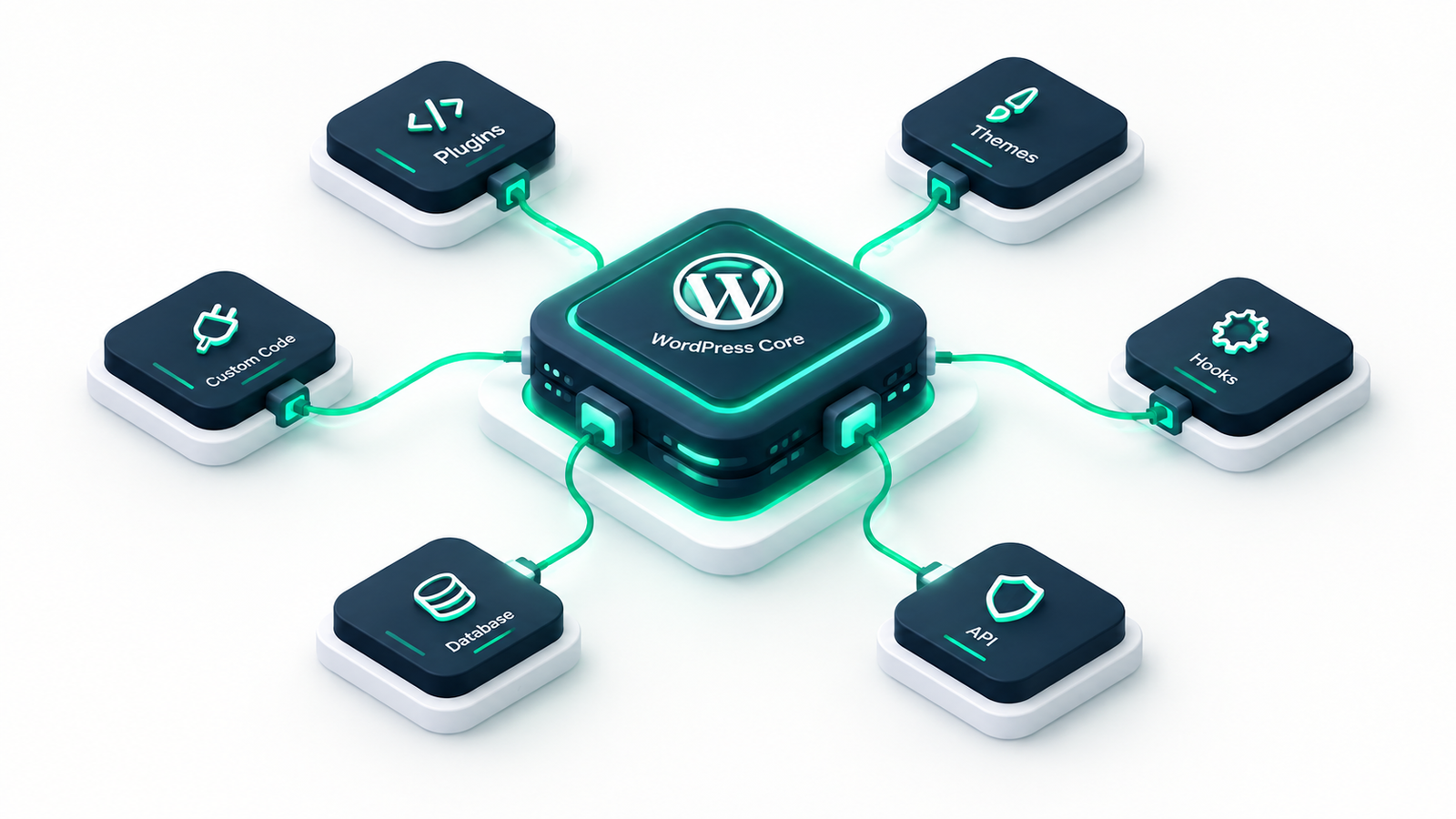

If you want to customize your website without breaking its core files, learning how to use WordPress action hooks is one of the most valuable skills you can acquire. WordPress is built to be modular, allowing developers to alter its default behavior without ever touching core systems. Action hooks serve as the main gateway to this flexibility, giving you the ability to inject custom scripts, add new layout sections, or run background processes at specific points during a page load.
Understanding hooks can be intimidating for beginners, but once you grasp the foundational principles, it transforms how you write code for themes and plugins. In this comprehensive guide, we will break down what action hooks are, how they work, how they differ from filter hooks, and how you can implement them safely on your WordPress site.
A hook in WordPress is a placeholder that allows developers to run custom code. When WordPress loads a web page, it goes through a specific sequence of actions, such as initializing theme settings, loading stylesheets, running database queries, and rendering page templates. This is where WordPress action hooks play a pivotal role.
Action hooks are points of execution defined by the WordPress core (or your active themes and plugins) where you can “hook” your custom functions. When WordPress reaches that specific point in the page execution cycle, it pauses to run all the custom functions attached to that hook, and then continues rendering the rest of the page.
Think of an action hook as a physical coat rack. The hook itself is built into the wall (the core code), and you can hang whatever coat (your custom function) you want on it. When WordPress runs, it inspects the hook and executes whatever you hung there.
In WordPress development, hooks are divided into two distinct categories: Actions and Filters. While they are structurally similar, their practical applications and return behaviors are fundamentally different. Knowing which one to use is essential for clean code structure.
| Feature | Action Hooks | Filter Hooks |
|---|---|---|
| Primary Purpose | Execute custom code, perform operations, or output elements at a specific point. | Modify, sanitize, format, or filter data before it is saved or rendered on screen. |
| Return Value | Does not expect or require a return value. They “do” something. | Must always return the modified data back to the hook. |
| Core Functions | add_action(), do_action() | add_filter(), apply_filters() |
| Example Scenario | Adding Google Analytics code directly to the website header. | Capitalizing the first letter of all post titles dynamically. |
To deepen your understanding of these core concepts, you can explore the official WordPress Developer Hook Reference, which offers technical specifications on the hook system.
The core mechanic of utilizing WordPress action hooks relies on two essential functions: do_action() and add_action(). Understanding how these two operations work in tandem is key to grasping the execution flow of WordPress.
The do_action() function is used to create a hook. This is typically placed in WordPress core files, theme layouts, or plugins. It tells WordPress, “Hey, if anyone has registered an action here, run it now!”
// Example of a hook creation within a theme file
do_action( 'wp_footer' );To hook your custom function into that specific point, you use the add_action() function. This is typically placed inside your theme’s functions.php file or a custom plugin file.
add_action( $tag, $function_to_add, $priority, $accepted_args );The add_action() function accepts up to four arguments:
wp_head).Let us look at real-world implementations to see how easy it is to use action hooks. Remember to always use a child theme or a custom site-specific plugin when testing these snippets to ensure you do not lose your modifications when themes update.
If you want to inject a custom script, such as Google Analytics, to the header of every page, you can use the wp_head hook. Additionally, it ensures your code is placed exactly where modern scripts need to load.
function wpeducated_add_analytics_script() {
    echo '<script>';
    echo 'console.log("Analytics Tracking Active");';
    echo '</script>';
}
add_action( 'wp_head', 'wpeducated_add_analytics_script' );If you want to automatically display a legal disclaimer in your footer layout, you can easily tap into the wp_footer hook.
function wpeducated_footer_disclaimer() {
    echo '<div class="footer-disclaimer" style="text-align:center; padding: 10px;">';
    echo '<small>Disclaimer: Views expressed are mine alone and do not represent professional legal advice.</small>';
    echo '</div>';
}
add_action( 'wp_footer', 'wpeducated_footer_disclaimer' );When multiple developers hook custom functions into the same action, prioritizing execution order is crucial. WordPress processes functions based on their designated priority parameters.
The default priority for any hook is 10. If you do not specify a priority, WordPress assigns 10 automatically. You can alter this to run your code earlier (lower priority numbers) or later (higher priority numbers).
| Priority Level | Execution Timing | Ideal Use Case |
|---|---|---|
| 1 to 9 | Runs early | Loading critical assets, defining configurations, or checking system compatibility. |
| 10 | Runs standard | Standard page logic and general custom scripts. |
| 11 or higher (e.g., 99) | Runs late | Overriding third-party plugin styling or injecting tracker tags at the very bottom. |
For instance, if you want your footer script to load after everything else, you can set a high priority like 99:
add_action( 'wp_footer', 'wpeducated_last_footer_script', 99 );Sometimes, an action hook provides specific data to any custom function connected to it. For example, the save_post action passes the Post ID and the Post Object to your callback function when a post is saved or updated. To access these variables, you must adjust the fourth argument of add_action().
// Utilizing the save_post action with 3 arguments
function wpeducated_log_post_saves( $post_id, $post, $update ) {
    // Only run if this is an actual update process
    if ( ! $update ) {
        return;
    }
    // Perform custom operations here
}
add_action( 'save_post', 'wpeducated_log_post_saves', 10, 3 );While WordPress has thousands of hooks, a handful of them will cover 90% of your development needs. Here are the most critical action hooks you should familiarize yourself with:
init: Runs after WordPress has finished loading but before any headers are sent. Perfect for registering custom post types and taxonomies.wp_enqueue_scripts: The correct hook for loading custom CSS stylesheets and JavaScript files. Never load styles directly on wp_head if you can avoid it!wp_head: Fires in the <head> section of the front-end theme. Ideal for tracking codes, metas, or critical inline CSS.wp_footer: Fires right before the closing </body> tag. Ideal for non-blocking JavaScript or custom layout blocks.admin_menu: Fires when the WordPress dashboard menu is loading. Used to add custom settings pages and custom menus.Working with custom code requires discipline to avoid conflicts with other plugins and themes. Here are a few best practices to ensure your code remains scalable and secure:
WordPress runs globally. If two different plugins define a function named add_custom_script(), WordPress will throw a fatal error. Therefore, always prefix your functions with a unique identifier based on your theme or brand names (e.g., wpeducated_add_custom_script()).
Avoid using massive general hooks like init if a more specific action exists. For example, loading styles under `init` works, but it can break conditional assets. Instead, use wp_enqueue_scripts, which is optimized explicitly for stylesheet handling.
When applying action hooks to customize your theme, do not write them in the parent theme’s functions.php. Instead, create a child theme or write a site-specific helper plugin. This guarantees that when your parent theme updates, your custom layout changes do not get wiped out.
Mastering WordPress action hooks is a foundational milestone for anyone looking to build professional WordPress websites. By hooking into existing system execution paths, you gain complete control over your site’s presentation, functionality, and integrations. Start by applying simple codes inside the wp_footer or wp_head, and gradually move toward complex actions to dynamically transform how your WordPress platform behaves.