Starting your first WordPress website is an exciting milestone. With its user-friendly interface and limitless customization options, WordPress powers over 43% of all websites on the internet. However, because it is so accessible, it is easy for beginners to fall into common traps that can compromise their site’s security, performance, and SEO.
If you are new to the platform, making a few blunders is completely natural. But some of these mistakes can lead to broken layouts, slow loading times, or even getting your website hacked. In this comprehensive beginner guide, we will explore the most common WordPress mistakes, explain why they happen, and provide actionable solutions to fix and prevent them.
Before diving into the details, here is a summary of the most critical errors and how to resolve them:
| Mistake | Impact | Immediate Solution |
|---|---|---|
| Choosing WordPress.com instead of WordPress.org | Limited control, monetization restrictions, and lack of custom plugin installations. | Migrate your site to a self-hosted WordPress.org setup. |
| Ignoring regular backups | Risk of permanent data loss due to server crashes, hacks, or update errors. | Install an automated backup plugin like UpdraftPlus. |
| Using the default ‘admin’ username | Extreme vulnerability to brute-force security hacking attempts. | Create a new administrator account with a unique name and delete the ‘admin’ user. |
| Leaving search engines blocked | Your website will not appear in Google search results, ruining your SEO. | Uncheck “Discourage search engines” in your Reading settings. |
| Uploading unoptimized, large images | Slow website speed, poor user experience, and lower SEO rankings. | Compress images before uploading and use a modern format like WebP. |
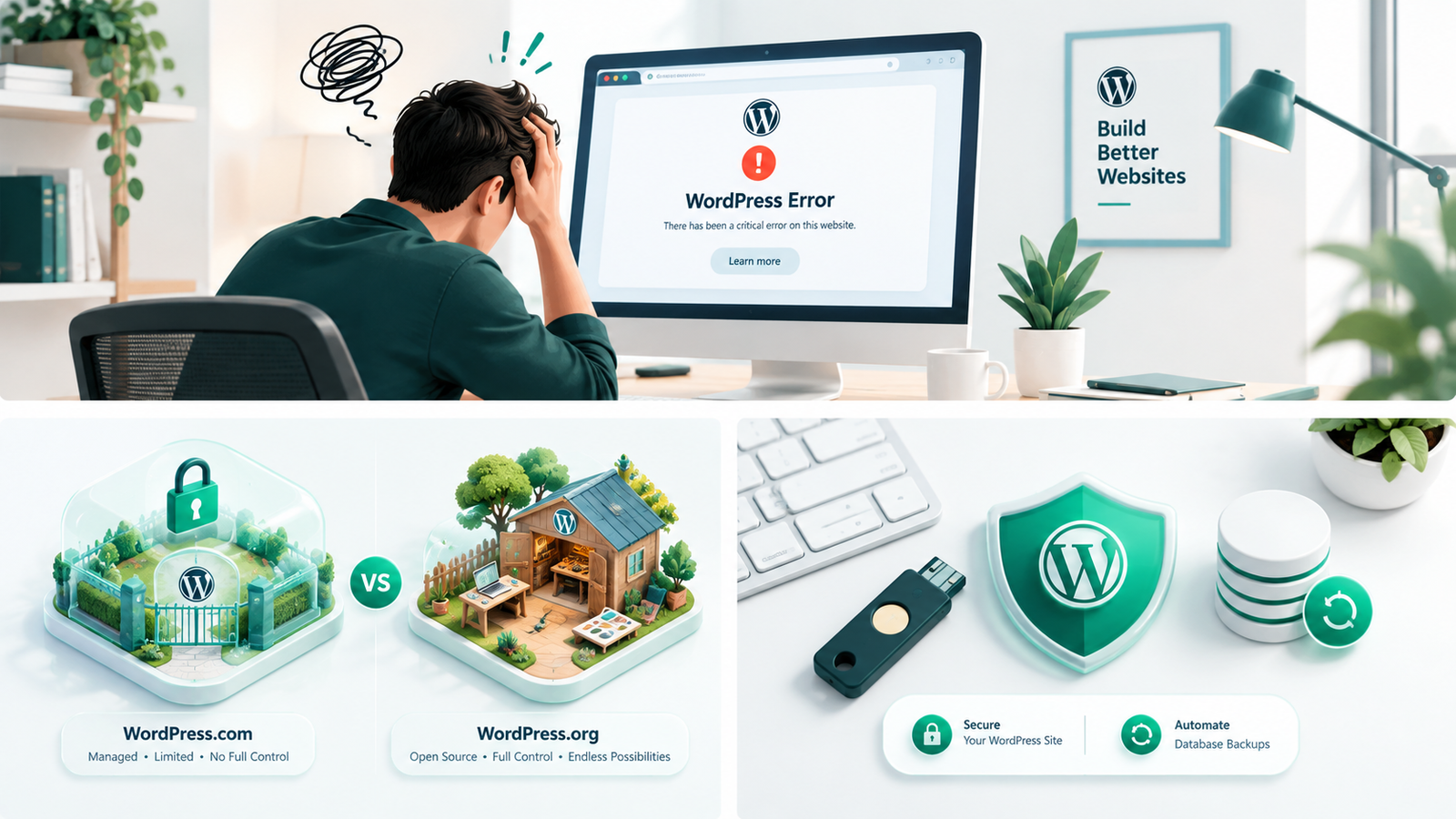
One of the very first decisions you make is where to host your site, and many beginners confuse WordPress.com with WordPress.org.
The Solution: If you want total control, make sure you choose self-hosted WordPress.org. If you already started on WordPress.com, you can easily export your content and migrate to a self-hosted host.
Still confuse. Read our in-depth guide
When installing WordPress, many beginners leave the default username as “admin” and choose a simple, easy-to-guess password. Security bots crawl the web 24/7 trying to guess these exact credentials using brute-force attacks.
The Solution: Never use “admin” as your username. If your hosting provider auto-created it, create a new user account with Administrator privileges, log out, log back in as the new user, and delete the old “admin” profile. Additionally, always use a password manager to generate and store complex passwords containing letters, numbers, and symbols.
Imagine spending weeks designing your site and writing blog posts, only for a bad plugin update or a server crash to wipe everything out. Operating a website without backups is like driving without a seatbelt.
“There are two types of website owners: those who back up their files, and those who have not lost everything yet.”
The Solution: Do not rely solely on your web host’s backups. Install a dedicated WordPress backup plugin like UpdraftPlus, BlogVault, or Duplicator. Configure it to back up your database and files automatically (daily or weekly) and store those backups off-site on a cloud storage service like Google Drive, Dropbox, or Amazon S3.
Plugins are the magic of WordPress, allowing you to add almost any feature with a single click. However, installing too many plugins—or poorly coded ones—can severely slow down your site, create compatibility conflicts, and open up security vulnerabilities.
The Solution: Keep your plugin list lean. Before installing a new plugin, ask yourself if the feature is absolutely necessary. Regularly audit your active plugins, delete any that you no longer use, and make sure to only download plugins that have high ratings, active development, and compatibility with the latest WordPress version.
By default, older WordPress installations sometimes used a permalink structure like http://yourdomain.com/?p=123. This is terrible for both SEO and user experience because search engine bots and human readers cannot understand what the page is about from the URL alone.
The Solution: Go to your WordPress Dashboard, navigate to Settings > Permalinks, and select the Post name option. This changes your URLs to a clean, readable format like http://yourdomain.com/sample-post/. If your site is already established with many posts, be careful when making this change, as you may need to set up 301 redirects to avoid 404 errors.
Many beginners avoid clicking the “Update” button because they are afraid of breaking their website. However, neglecting updates is one of the leading causes of WordPress security breaches. Updates do not just add new features; they patch critical security bugs and improve performance.
The Solution: Establish a routine update schedule. Check your dashboard weekly for pending updates. Always run a complete backup of your site before running updates, so you can easily restore your site if anything goes wrong. Alternatively, you can enable auto-updates for minor security releases.
During the development phase, it is common to check the box that tells search engines not to index your site. This is great while you are building. However, many beginners forget to uncheck this box once their site goes live, resulting in zero traffic from Google.
The Solution: Check this setting immediately! Go to Settings > Reading, scroll down to the Search Engine Visibility section, and ensure that the box next to “Discourage search engines from indexing this site” is unchecked. Save your changes.
High-quality images make your website look professional, but uploading raw, uncompressed photos straight from your phone or a stock photography site will bloat your page sizes. This leads to agonizingly slow loading speeds, which frustrates visitors and hurts your search engine rankings.
The Solution: Before uploading any image to WordPress, resize it to the maximum width required by your layout (usually no more than 1920px for full-width banners, or 800px for blog post content). Run the images through a compression tool like TinyPNG or install a WordPress optimization plugin like Smush or EWWW Image Optimizer to serve images in modern next-gen formats like WebP.
If you want to customize your website’s design or add custom code to your theme’s functions.php file, doing so directly within the main theme files is a massive mistake. The next time the theme developer releases an update, all of your custom code will be completely overwritten and lost.
The Solution: Always use a child theme. A child theme inherits all the functionality and styling of your parent theme but allows you to make custom modifications safely. When the parent theme updates, your customizations remain untouched.
How do you know if your site is growing if you aren’t measuring your traffic? Many beginners publish content for months without setting up tracking tools, missing out on crucial data about who their audience is, where they come from, and what keywords they use to find the site.
The Solution: From day one, connect your site to Google Analytics and Google Search Console. You can use official plugins like Google Site Kit to easily connect these tools directly to your WordPress dashboard, helping you monitor search impressions, clicks, and user behavior.
Making mistakes is a normal part of the learning curve when building your first WordPress site. By taking a proactive approach to security, performance, and basic SEO configurations, you can save yourself hours of troubleshooting and build a highly successful online presence.
Take some time today to review your settings, install an automated backup plugin, optimize your image upload workflow, and ensure your site is completely visible to search engines. Your future self will thank you!
Not a developer? Check out our WordPress Setup Checklist: Everything to Do After Installation guide for beginners.