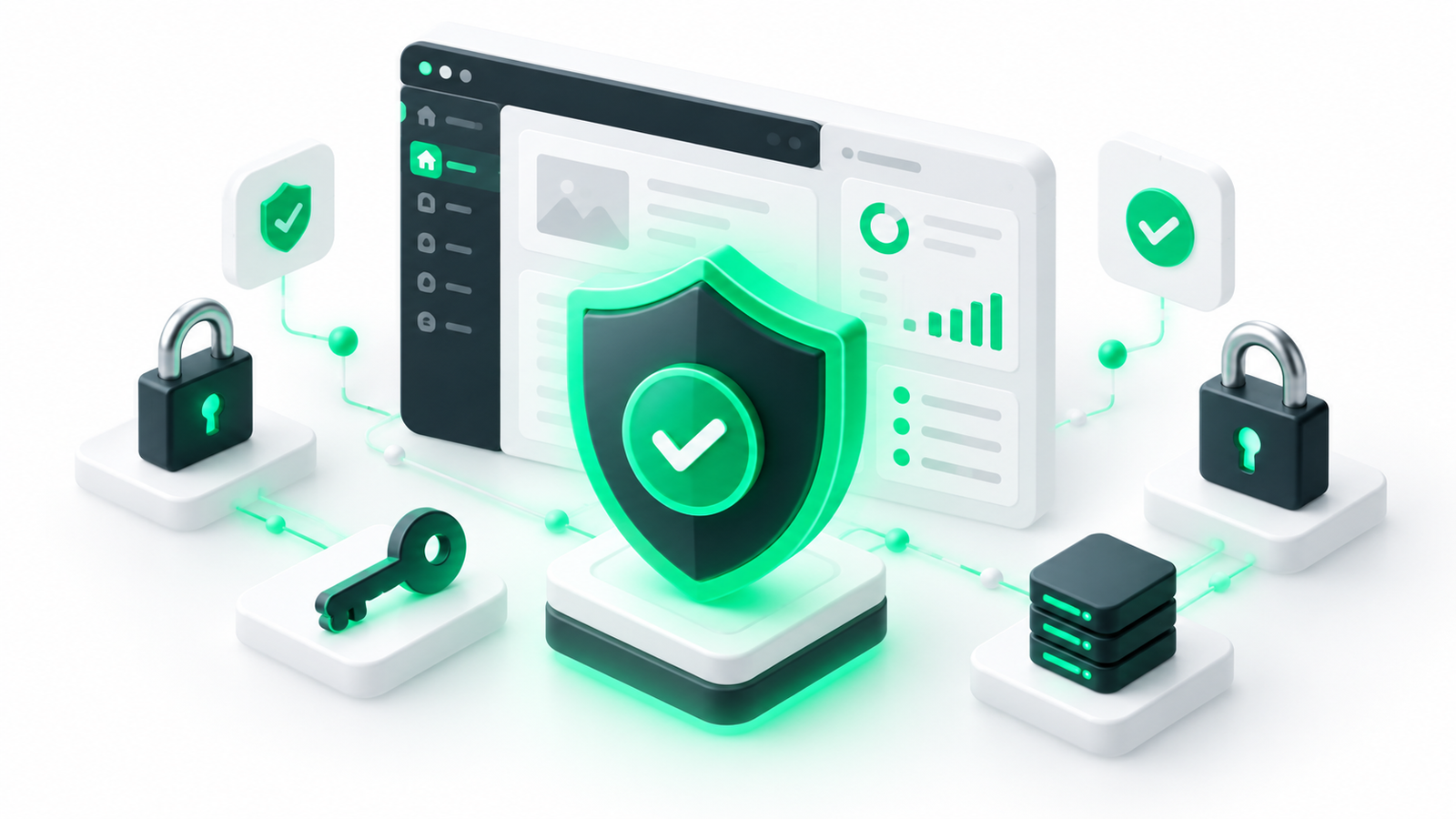

In today’s digital landscape, maintaining robust WordPress security is essential for any website owner, blogger, or online business. Because WordPress powers over 43% of all websites globally, it is naturally a primary target for malicious actors. However, securing your site does not have to be an overwhelming or highly technical challenge. By understanding which measures genuinely reduce risk and which ones are simply marketing noise, you can establish a highly resilient defense system.
Before diving into the technical configurations, it is crucial to understand that absolute security does not exist. No website is 100% hack-proof; therefore, the goal of any website security checklist is risk reduction and disaster recovery. Implementing these measures makes your site an expensive and time-consuming target for attackers, prompting them to move on to easier targets. Let’s explore the practical, step-by-step methods to build a secure WordPress website.
Many site owners fall into the trap of installing a security plugin and assuming their website is perfectly safe. In reality, robust WordPress security is a multi-layered process. For example, a web application firewall can block common SQL injection attacks, but it cannot prevent an attacker from logging in if you are using a weak admin password. Consequently, keeping your site secure requires a combination of strong authentication, regular maintenance, secure infrastructure, and continuous monitoring.
The foundation of any web security solutions framework begins with your hosting environment and software maintenance. If these two pillars are weak, all other WordPress security measures will fail.
The vast majority of WordPress vulnerabilities stem from outdated plugins and themes. Whenever a developer releases an update, they often patch known security loopholes. If you delay these updates, you leave an open door for automated bots scanning the web for known exploits. Therefore, you should enable automatic updates for minor core releases and establish a weekly routine to review and update your themes and plugins. For advanced users who prefer command-line management, you can automate and streamline these updates easily; read our WP-CLI Beginner’s Guide to learn how.
Choosing a reputable web host is one of the most critical decisions you will make. While cheap shared hosting is budget-friendly, it often lacks server-level security isolation. This means if another website on the same server is compromised, your site could also be affected. On the other hand, specialized managed WordPress hosts offer built-in firewalls, server-level caching, automated backups, and isolated environments that stop cross-site contamination before it starts.
Brute-force attacks, where bots repeatedly guess passwords until they gain access, are incredibly common. Fortunately, you can easily neutralize these attacks by strengthening how users log in to your dashboard.
Never use “admin” or your domain name as a username. If your site already has an “admin” user, create a new administrator account with a unique name, log in with the new account, and delete the old “admin” profile (making sure to attribute all existing content to your new user). Additionally, use a password manager to generate complex, random passwords for every user on your site.
Two-Factor Authentication (2FA) is one of the most effective web security solutions available. By requiring a temporary code from a mobile app (like Google Authenticator or Authy) in addition to a password, you render stolen credentials useless. Even if an attacker guesses your password, they cannot access the dashboard without your physical mobile device.
Do not assign the “Administrator” role to everyone who contributes to your site. Editors, authors, and contributors should only have the minimum permissions necessary to complete their tasks. For example, a guest blogger only needs the “Contributor” role, which prevents them from installing plugins or altering system settings.
If your website is compromised, a clean backup is your ultimate safety net. Backups do not prevent hacks, but they ensure you can recover quickly without paying a ransom or losing years of hard work. However, keeping backups on the same server as your website is a critical mistake—if the server is compromised, your backups may be deleted or encrypted as well.
To establish a reliable backup strategy, follow these rules:
Hypertext Transfer Protocol Secure (HTTPS) encrypts the connection between your visitors’ browsers and your web server. This encryption prevents attackers from intercepting sensitive information, such as passwords, credit card numbers, or personal data. Additionally, search engines like Google penalize websites that do not use SSL certificates. You can obtain a free, automated SSL certificate from Let’s Encrypt, which is supported by almost all modern hosting providers.
Hardening refers to configuring your site’s files and server settings to restrict access. By locking down key configuration files, you minimize the surface area available to hackers.
By default, WordPress allows administrators to edit theme and plugin files directly from the dashboard. If an attacker gains access to an administrator account, they can use this editor to inject malicious PHP code. You can disable this feature by adding the following code snippet to your wp-config.php file:
define( 'DISALLOW_FILE_EDIT', true );Incorrect file permissions on your web server can allow unauthorized users to overwrite critical system files. Ensure your permissions conform to standard WordPress recommendations: 755 or 750 for directories, and 644 or 640 for files. The wp-config.php file should be even more restricted, typically set to 600 or 440.
While many plugins claim to offer complete protection, you must choose your web security solutions carefully. Installing too many security plugins can slow down your site and create software conflicts.
Ideally, you should implement a Web Application Firewall (WAF). There are two primary types of WAFs:
Hackers often gain access to a site and remain silent, slowly injecting spam links or stealing user data over weeks or months. Consequently, continuous monitoring is vital. Use an activity log plugin to track user logins, published posts, and plugin changes. This audit trail allows you to quickly identify unusual behavior and pinpoint exactly when and how a breach occurred if an incident happens.
To help you implement these steps efficiently, here is a prioritized website security checklist showing the level of impact each action has on your overall safety.
| Priority | Security Action | Risk Reduction Level | Complexity |
|---|---|---|---|
| Critical | Enable automatic core, theme, and plugin updates | Very High (Prevents known exploits) | Low (One-time toggle) |
| Critical | Configure daily, automated off-site backups | Very High (Ensures disaster recovery) | Medium (Requires setup) |
| High | Install an SSL certificate and enforce HTTPS | High (Protects data in transit) | Low (Usually provided by host) |
| High | Enable Two-Factor Authentication (2FA) | Very High (Stops brute-force attacks) | Low (Plugin-based setup) |
| Medium | Disable dashboard file editor (DISALLOW_FILE_EDIT) | Medium (Limits damage if compromised) | Low (One-line code change) |
| Medium | Set up a Cloud-Based Firewall (DNS-level WAF) | High (Filters malicious traffic early) | Medium (Requires DNS updates) |
Securing a WordPress website is not a “set-and-forget” project. Instead, it is an ongoing practice of maintenance, vigilance, and smart configuration. By implementing the practices on this WordPress security checklist and selecting proper web security solutions, you significantly decrease your vulnerability profile. Remember to stay updated, back up regularly, and keep user privileges to a strict minimum. Your visitors, customers, and peace of mind will thank you.